Documentation for the endpoint - carrouselv2
This document describes the structure of the JSON payload used to submit content requests for carousel generation. The JSON structure allows you to specify the content, layout, and styling of your carousel slides.
Basic Structure
The basic structure of the JSON payload is as follows:
{
  "generate_zip": false,
  "template": "001",
  "background_color": "",
  "background_image": "",
  "output_filename": "",
  "slides": [
      {
          "text": "WITH OUR TOOLS YOU CAN"
      },
      {
          "text": "CREATE INSTAGRAM CAROUSELS"
      },
      {
          "text": "IN A BLINK OF AN EYE!",
          "fonts_color_all": "#FFFFFF",
          "background_image": "https://i.imghippo.com/files/T8SCq1722862049.png"
      },
      {
          "text": "TRY OUR API AND GET RESULTS!"
      }
  ]
}
Field Descriptions
All fields are optional except: template and slides
- generate_zip: Boolean indicating whether to generate a zip file of the carousel images (default: false)
- template: The ID of the template to use (e.g. "001", "002", "005").
- background_image: URL of the default background image to use for all slides (optional), in case an image is not provided the default_background_color is recommended (default: "")
- background_color: Hex color code (e.g. #FFFFFF) for the default background color (used if no background image is provided) (default: "#FFFFFF")
- slides: An array of slide objects, each representing a slide in the carousel.
- title: The main title of the slide (used only in the first slide).
- summary: A brief summary or subtitle (typically used only in the first slide).
- text: The main content text for the slide (if title is used, text will be disabled)
- background_image: URL of the background image for this specific slide (optional, overrides default).
- background_color: Hex color code for this specific slide's background (optional, overrides default).
- image_url: The URL of the image to be included in the slide (optional).
- image_verticalPosition: Vertical positioning of the image ("top", "center", "bottom") (default: "bottom")
- image_horizontalPosition: Horizontal positioning of the image ("left", "center", "right") (default: "center")
- image_horizontalDimension: How the image should be sized horizontally ("fit", or number of pixels for width, note that pixels must be informed betweew "", example: "500") (default: "fit")
- image_textPosition: Position of text relative to the image ("top", "bottom") (default: "top")
Slide Images and Image Positioning
Slide images should not be placed in the title slide.
url
- Location of the image file. Image should be accessed publicly in order to work. One option is to use https://i.postimg.cc
In the following examples, the media size is 1080 x 1350 pixels and all margins are set to 100 pixels.
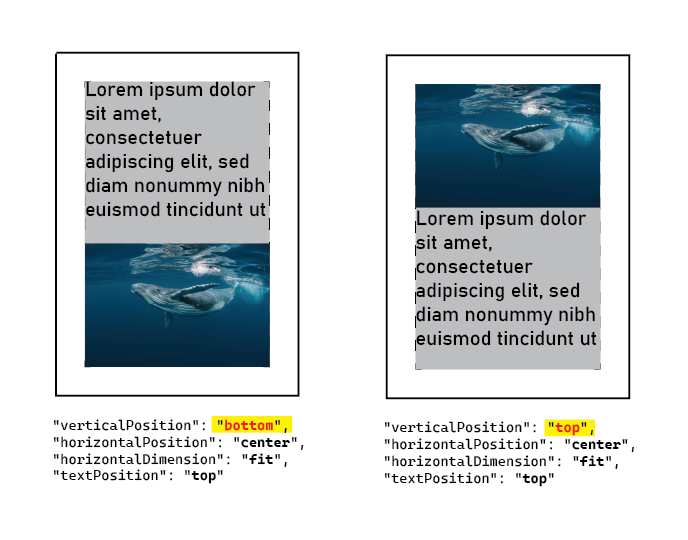
verticalPosition and textPosition
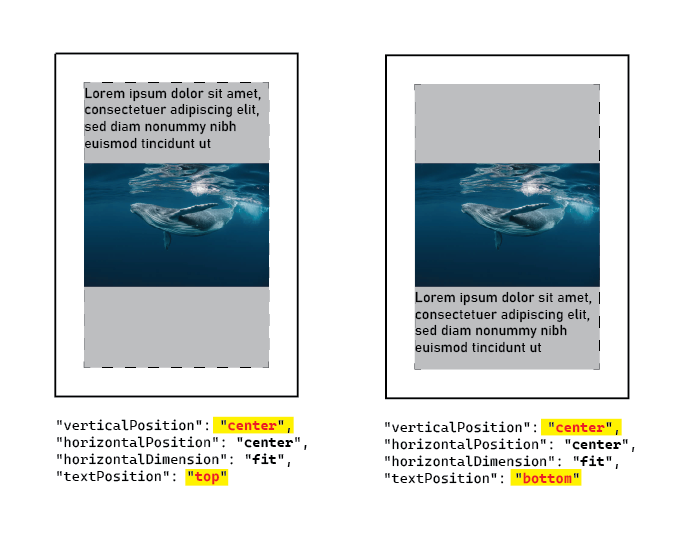
- verticalPosition could be set to: top, center or bottom - specifies the where the image will be placed in the content area
- textPosition could be set to top or bottom - specifies the location of the text in relation to the image
When verticalPosition is set to top or bottom, the text is positioned in the opposite side automatically, so textPosition is ignored. Two examples:
When verticalPosition is set to center, textPosition should be specified as top or bottom
horizontalDimension and horizontalPosition
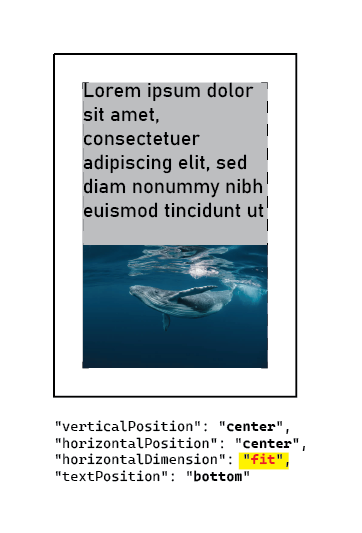
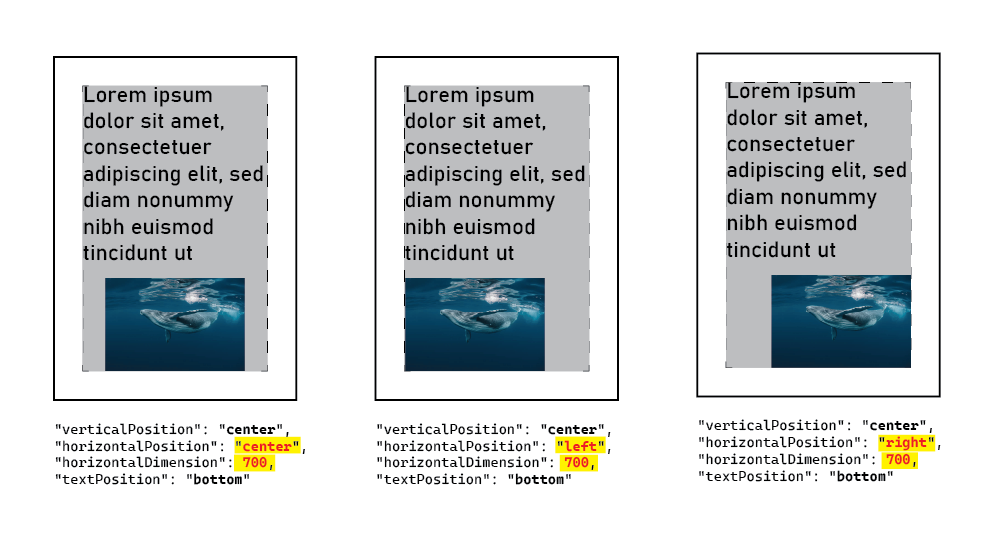
- horizontalDimension could be set to fit or an integer representing the number of pixels - specify the width of the image, the height will be adjusted to keep original image proportions
- horizontalPosition could be set to: top, center or bottom - specifies the horizontal alignment image
When horizontalDimension could be set to fit the image will use the extent of the available are inside margins
When horizontalDimension is set an integer smaller than the available widht, the height will be adjusted to keep original image proportions, and horizontalPosition will set the horizontal alignment of the image.
Overrides
Overrides allows you to customize various aspects of the carousel's appearance and behavior. You can override specific configuration settings without changing the entire template. Overrides could be included in the same level of the main data (e.g. "background_color") or in each slide, see example at the end of this document.
Important: slide overrides global settings that overrides template settings.
Special Override Keys
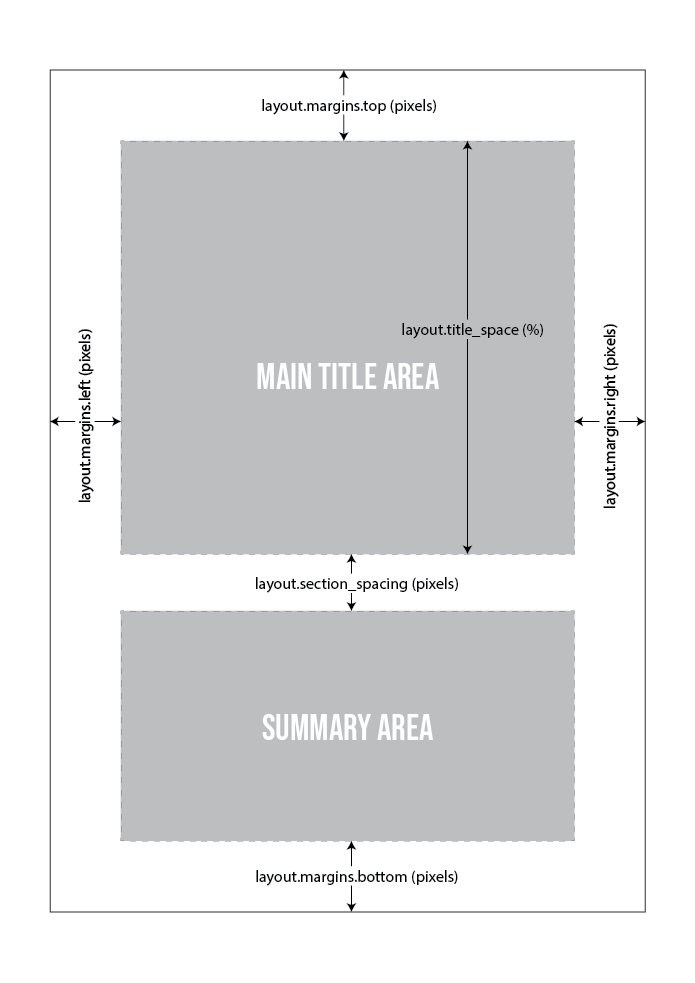
- layout.margins.all: Sets all margins (left, right, top, bottom) to the same value.
- fonts.all: Changes the font for all text types (title, summary, content).
- fonts.color.all: Changes the color for all text types.
Examples of Overrides
{
  "layout_margins_all": 120,
  "fonts_all": "Arial.ttf",
  "fonts_color_all": "#000000",
  "fonts_title_size": 30,
  "layout_alignment": "left",
  "standard_dimensions": [1080, 1080],
  "layout_title_space": 80,
  "fonts_summary_color": "#FF0000"
}
Override Structure
Here's a comprehensive list of possible overrides:
Dimensions:
- standard_dimensions (array of pixels representing the size of the image, not needed if a background image is provided - example [1080,1080], standard is [1080,1350])
Layout:
- layout_margins_left (pixels)
- layout_margins_right (pixels)
- layout_margins_top (pixels)
- layout_margins_bottom (pixels)
- layout_margins_all (special override to set all margins at once)
- layout_title_space (% of the space to be used by main title, the available space without the margins, example: 60)
- layout_section_spacing (space in pixels between the title and summary)
- layout_alignment (how text is aligned: ("left", "center", "right"))
- layout_vertical_alignment (how text inside of its boundaries is positioned vertically: ("top", "center", "bottom"))
Fonts (see more about fonts available below):
- fonts_all (special override to change all fonts at once)
- fonts_color_all (special override to change all font colors at once)
- fonts_title_name
- fonts_title_max_size - starting size that the tool is going to use to fit in the desired space
- fonts_title_color
- fonts_summary_name
- fonts_summary_max_size - starting size that the tool is going to use to fit in the desired space
- fonts_summary_color
- fonts_content_name
- fonts_content_max_size - starting size that the tool is going to use to fit in the desired space
- fonts_content_color
Output:
- output_filename - define the output name of the file
Debug:
- debug - used to draw lines to see if margins (set to true or false)
Templates
Template - 001
 |  |  |  |
Template - 002
 |  |  |  |
Template - 003
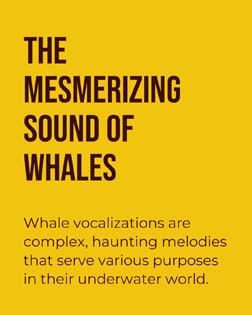 | 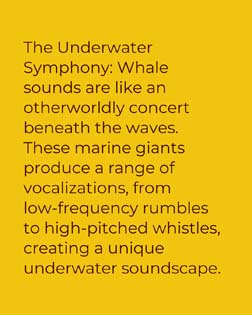 | 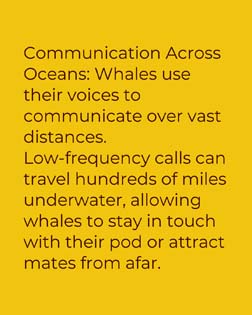 | 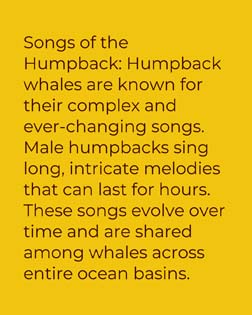 |
Template - 004
 |  |  |  |
Template - 005
 |  |  |  |
Available Fonts
These are Google fonts, check Google Fonts site to more details: https://fonts.google.com/
BebasNeue-Regular.ttfMontserrat-Regular.ttfOpenSans_Condensed-Bold.ttfOpenSans_Condensed-Regular.ttfOpenSans-Bold.ttfOpenSans-Italic.ttfOpenSans-Light.ttfOpenSans-Medium.ttfOpenSans-Regular.ttfOswald-Bold.ttfOswald-Light.ttfOswald-Medium.ttfOswald-Regular.ttfPlaywriteAR-Regular.ttfPlaywriteAR-Thin.ttfPoppins-Bold.ttfPoppins-Regular.ttfPoppins-Thin.ttfRobotoSlab-Black.ttfRobotoSlab-Bold.ttfRobotoSlab-Light.ttfRobotoSlab-Regular.ttfRobotoSlab-Thin.ttf
Important Notes on Overrides
- Only specified overrides will be applied. Unspecified settings will use the default values from the selected template.
- Invalid override keys will be ignored.
- Special overrides like layout.margins.all, fonts.all, and fonts.color.all provide convenient ways to make broad changes.
- The debug override can be useful for troubleshooting, but should typically be set to false for production use.
- Be cautious when overriding layout settings, as significant changes may affect the overall design and readability of your images.
Best Practices
- Start with a template that closely matches your desired output.
- Use overrides sparingly to make specific adjustments.
- Test your carousel with different content lengths to ensure proper formatting.
- Be mindful of color contrasts for readability when overriding colors.
- When using images, ensure they are high quality and relevant to the content.
By following this structure and guidelines, you can create customized, visually appealing carousels tailored to your content and branding needs.
Example of json with several possible settings
{
  "generate_zip": false,
  "template": "001",
  "background_color": "",
  "background_image": "",
  "output_filename": "",
  "layout_margins_left": 100,
  "layout_margins_right": 100,
  "layout_margins_top": 135,
  "layout_margins_bottom": 135,
  "layout_title_space": 70,
  "layout_section_spacing": 50,
  "layout_alignment": "center",
  "layout_vertical_alignment": "top",
  "fonts_title_name": "Oswald-Bold.ttf",
  "fonts_title_max_size": 150,
  "fonts_title_color": "#FFFFFF",
  "fonts_summary_name": "RobotoSlab-Regular.ttf",
  "fonts_summary_max_size": 60,
  "fonts_summary_color":"#DDDDDD",
  "fonts_content_name": "OpenSans-Regular.ttf",
  "fonts_content_max_size": 80,
  "fonts_content_color": "#224466",
  "slides": [
    {
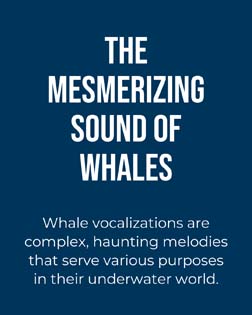
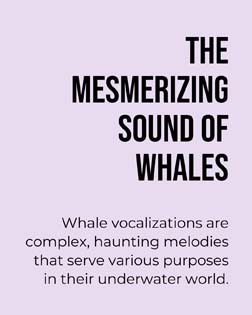
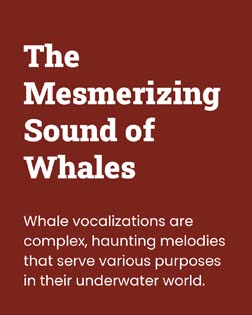
          "title": "The Mesmerizing Sound of Whales",
          "summary": "Whale vocalizations are complex, haunting melodies that serve various purposes in their underwater world.",
          "layout_alignment": "right",
          "layout_margins_all": 50,
          "layout_vertical_alignment": "center",
          "fonts_title_name": "Poppins-Bold.ttf"
      },
      {
          "text": "WITH OUR TOOLS YOU CAN"
      },
           {
          "text": "CREATE INSTAGRAM CAROUSELS",
          "layout_alignment": "left",
          "image_url": "https://example1.png",
          "image_verticalPosition": "top",
          "image_horizontalPosition": "right",
          "image_horizontalDimension": "fit",
          "image_textPosition": "bottom"
      },
      {
          "text": "IN A BLINK OF AN EYE!",
          "fonts_color_all": "#7acc90",
          "background_image": "https://example2.png",
          "layout_alignment": "right",
          "image_url": "https://example3.png",
          "image_verticalPosition": "top",
          "image_horizontalPosition": "right",
          "image_horizontalDimension": "fit",
          "image_textPosition": "bottom"
      },
      {
          "text": "TRY OUR API AND GET RESULTS!"
      }
  ]
}